User Guide¶
This chapter is written for editors using the TYPO3 backend.
Inline AI buttons¶
The AI services are available directly in the editing forms — there is no separate module to switch to. Wherever you see a "✨ KI" button, click it to let the AI fill the adjacent field. You can always review and edit the result before saving.
- Page teaser
- On the page properties, the teaser field (
abstract) has a "✨ KI" button that generates a short teaser from the rendered page content. - Meta description
- In the Page Layout module, the SEO panel offers "✨ Meta-Description mit KI erzeugen". It summarises the page into a ≤155-character meta description, shows a preview you can edit, and saves it to the page on "Übernehmen".
Generating alt texts¶
There are three ways to create alt texts:
-
Individually, from the file metadata form. When editing an image's metadata, the "Generate alt text" button calls the AI for the currently selected language.
If a text exceeds the configured character limit, nt-ai automatically asks once more with a stricter instruction (in the output language); only if that still overruns is it truncated — then marked with an ellipsis (…) rather than a full stop, so an incomplete text stays recognisable as such.
-
In bulk via CLI. For sites with many missing alt texts:
# Dry run — see what would be generated, no DB writes.
vendor/bin/typo3 nt_ai:generate-alt-texts --dry-run --limit=20

# Real run, 100 files, German output.
vendor/bin/typo3 nt_ai:generate-alt-texts --limit=100 --language=de

# Force a specific provider.
vendor/bin/typo3 nt_ai:generate-alt-texts --provider=openai

# Also overwrite existing alt texts.
vendor/bin/typo3 nt_ai:generate-alt-texts --overwrite

# Include PDF documents (alt text from the PDF's text).
vendor/bin/typo3 nt_ai:generate-alt-texts --include-pdf
Schedule this via the standard "Execute console commands" Scheduler task to keep newly uploaded images covered automatically.
-
Custom integration. Any developer can call the
AiService::generateAltText()method — see the Developer Guide.
Alt texts for PDF documents¶
PDF documents can also get an AI alt text — relevant when a PDF is embedded as a preview thumbnail linking to the full document. Since a PDF cannot be sent to the image (vision) model, its text content is extracted and summarised into a concise alt text (the type and topic of the document).
- Single: the same "Alt-Text generieren" button in a PDF's file-metadata form.
- Bulk:
nt_ai:generate-alt-texts --include-pdf(adds PDFs on top of images; without the flag it stays images-only so existing cron runs are unchanged).
Scanned PDFs without a text layer cannot be extracted — the tool then reports that no text was found.
The alt texts are shaped by the alt-text settings — style, length, tone, brand context, custom rules. Adjust them once and every subsequent generation uses the new settings.
Running an accessibility audit¶
Open Web → Accessibility Audit with a page selected in the page tree.
If the page has never been audited, you'll see an info banner. Click "Run audit now". The extension fetches the rendered page over HTTP, parses it, runs all configured rules, and saves the report.
The result page shows:
- Score (0–100). See How the score is calculated below for the full formula.
- Counts per severity — errors, warnings, notices.
- Findings table. Each row shows:
- Severity badge
- Rule ID (used in TSconfig if you want to disable specific rules)
- Message — what is wrong
- Suggestion — how to fix it (often AI-generated)
- WCAG reference — the success criterion this maps to
- Location — a CSS selector pointing at the element
- HTML snippet — the offending markup
- Previous reports. The last 10 reports are kept for comparison so you can see whether your changes improve or regress the score.
Click "Export latest as CSV" to download the report for sharing or archiving.
BFSG report (printable / PDF)¶
The "Report (BFSG)" button in the page-detail view opens a self-contained, printable HTML report (WCAG 2.2 · BFSG · EN 301 549). It is self-contained (inline CSS, screenshot as a data URI) and can be saved directly as PDF via "Print / Save as PDF".
The report contains:
- a conformance verdict (Not conformant / Partially conformant / Automatically conformant),
- metrics (score, errors, warnings, notices) plus — if available — the Lighthouse accessibility score and a rendered screenshot of the page,
- the findings grouped by WCAG criterion with severity, message, recommendation and code snippet,
- a disclaimer that this is an automated, partly AI-assisted check — not a legally binding accessibility statement.
Tip
Keep "Background graphics" enabled in the print dialog so the coloured severity badges also appear in the PDF.
Filtering by website (multi-site installations)¶
When more than one site is configured in an instance (e.g. many school websites), the module shows a "Website" dropdown above the tabs. It scopes the Site Overview and the Lighthouse tab to the pages of the chosen site — page table, "most frequent issues", the totals row and the Lighthouse table. "Alle Websites" keeps the previous cross-site view.
The choice is remembered per backend user and carried across tabs; on first use it defaults to the site of the page selected in the tree. The dropdown does not appear when only one site is configured. The "Page detail" and "Declaration" tabs are inherently single-page and unaffected.
Overview report (site-wide)¶
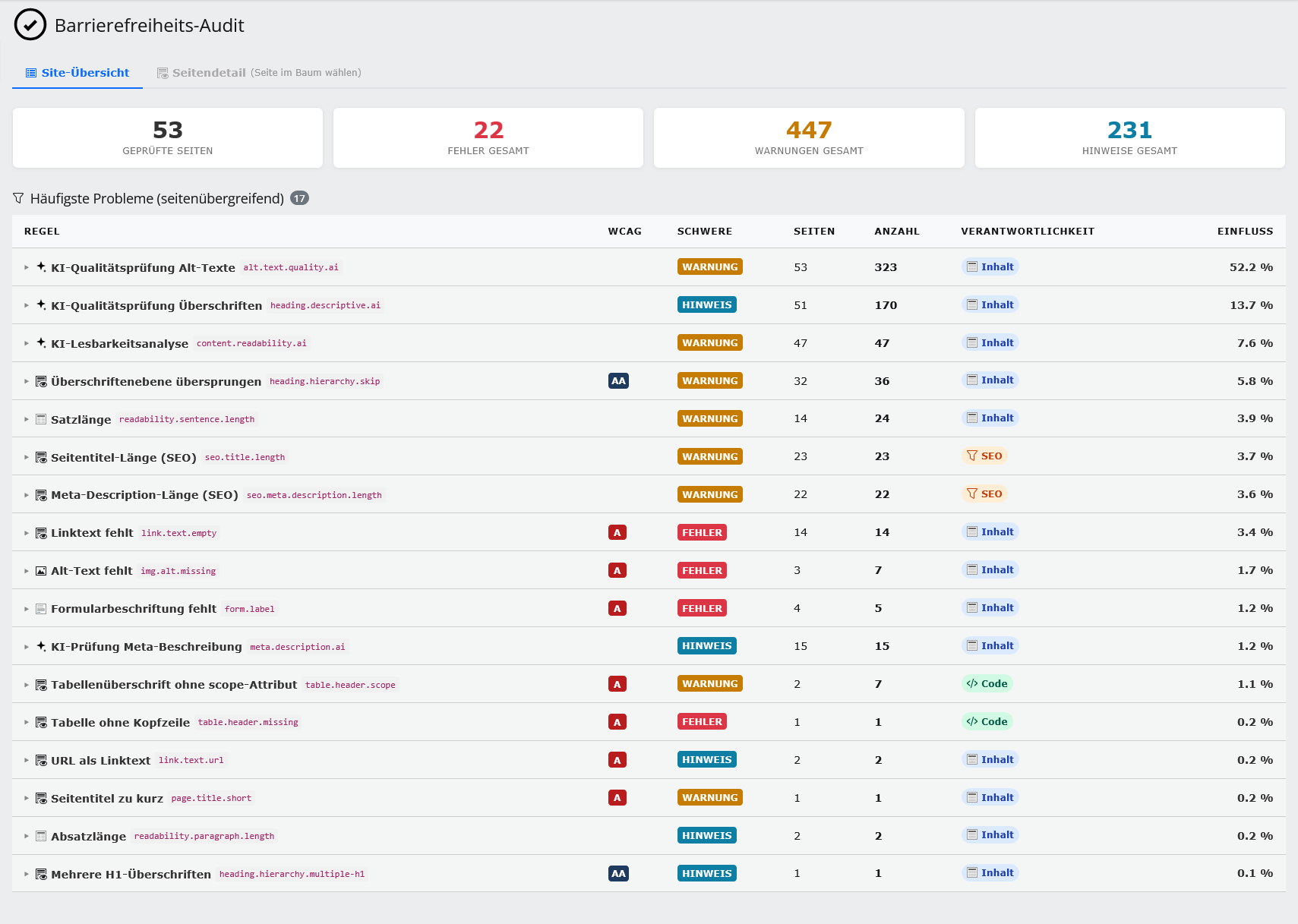
In the Site Overview (module with no page selected, or the "Site overview" tab) the "Overview report (BFSG)" button produces a printable report across all audited pages (the latest audit per page):
- an aggregated conformance verdict (e.g. "Not conformant – 23 of 58 pages with critical errors"),
- metrics incl. the average score and the split conformant / with warnings / with critical errors,
- a per-page table (worst first) with score and status per page,
- the most frequent WCAG barriers site-wide with occurrences and the number of affected pages.
This is the suitable evidence document for BFSG documentation. Only pages the logged-in editor may access are included.
Generate an accessibility statement¶
The "Erklärung" (Statement) tab in the audit module turns the existing audit data into a draft accessibility statement (following the German BITV model text / BFSG § 14, EU 2016/2102) and publishes it — after editorial approval — onto the accessibility page.
The tab is only shown to users who may use it — administrators, or editors when the extension setting declaration.editorsMayPublish is enabled. Select a page of the intended website in the page tree first: the statement is generated and published for that page's site (target page, feedback contact and statistics follow it), and the tabs keep that selection when you switch between them.
How it works:
- Facts — the tab shows what nt-ai has already measured: conformance status, pages without critical findings, conformant PDF documents, the date of the last check, the WCAG barriers carried into the draft and the measures in place. These facts flow into the draft unchanged, so the statement cannot contradict the overall report.
- Generate draft — per language (German, plus English when the target page has a translation) the AI produces a structured draft. Missing mandatory fields are marked "[bitte ergänzen]" instead of being guessed.
- Review & edit — the draft appears in an editable text field. Legal and editorial responsibility stays with the operator; automated testing covers only part of the WCAG criteria.
- Publish — writes the approved text onto the target page. On first use the existing statement element on the page is updated (no duplicate); afterwards always the same element (versioned, permission-checked via DataHandler).
Target page: the page with slug /barrierefreiheit by default, or a page UID set in the extension settings. The feedback contact, enforcement body and the measures are also maintained there (tab "Barrierefreiheitserklärung"). Installed sibling extensions (nt-lingua) and the nt-ai audit are added automatically as measures.
The tool produces a well-founded, data-backed draft — not legal advice. Responsibility and approval remain with the operator.
Preview audit for unpublished pages¶
The audit checks the rendered frontend page. Pages with a future start date, hidden pages, or access-restricted pages would not be reachable on the normal frontend. So that such pages can be checked before publishing, the audit fetches the page via a short-lived, HMAC-signed preview token (simulating time and visibility like the backend preview). Manual audits and nt_ai:audit --preview use this mode automatically — no configuration needed.
Audit triggers¶
The audit can run in three ways:
- Manual — the "Run audit now" button in the backend module.
- On save — set
audit.autoOnSaveto on; every page save triggers an audit (rate-limited byaudit.autoCooldown). -
Scheduled / CLI — run
vendor/bin/typo3 nt_ai:auditfrom cron or the Scheduler:# Audit a single page. vendor/bin/typo3 nt_ai:audit --page=42 --save # Audit up to 100 pages, fail if any scores below 80. vendor/bin/typo3 nt_ai:audit --limit=100 --save --min-score=80 # Only show pages with findings. vendor/bin/typo3 nt_ai:audit --limit=100 --quiet-passWith
--min-scoreset, the command returns a non-zero exit code when any page falls below the threshold — useful for CI pipelines. With--fail-on=error(orwarning) the exit code follows the finding severities instead of the score.
Unreachable pages do not block the scheduled audit. A page that permanently answers HTTP 404/410 (e.g. a news/events detail URL with no record) does not count as a technical failure — it cannot trip the "every page failed" rule — and is left out of the queue for a week. Genuine technical failures are deferred with an escalating cooldown (6 h → 24 h → 3 d → 7 d) instead of being re-selected first on every run. Pages removed from the search index (
no_index, EXT:seo) are not audited.
The scheduled task rotates through the page tree (least-recently-audited first). **Pages without a site** (shared record containers for forms, footer or menu content) are skipped, and failed pages are deferred for a few hours — so the queue does not get stuck on pages it cannot audit.
Publishing Quality Gate¶
The Quality Gate prevents (or warns about) publishing pages with unresolved critical accessibility findings. It triggers when a page is saved or made visible in the backend and evaluates the page's last stored audit report.
Modes (extension setting audit.qualityGate):
- off — disabled (default).
- warn — saving is allowed, but a flash message appears with the count of critical findings.
- block — publishing is prevented: the page stays hidden until the findings are fixed (and the audit is re-run).
Other settings:
audit.qualityGateSeverity— which severity trips the gate:error(errors only) orwarning(errors and warnings).audit.qualityGateScope—onPublish(only when making a hidden page visible) oronSave(on every save of a visible page).audit.qualityGateAdminBypass— when on, administrators may override the gate despite findings.
Note
The gate evaluates the last audit. After fixing findings, re-audit the page, otherwise the stale report keeps blocking. If no audit exists yet for the page, the gate does not trigger.
How the score is calculated¶
The audit score is a 0–100 integer derived from the findings of a single audit run. It starts at 100 and deducts points based on the severity of each finding:
| Severity | Deduction per finding | Meaning |
|---|---|---|
| Error | −10 points | Definite WCAG violation (missing alt text, broken heading hierarchy, missing form label, …) |
| Warning | −3 points | Likely problem or strong best-practice recommendation (generic link text, low contrast, long sentence, …) |
| Notice | −1 point | Style hint or minor quality signal (paragraph length, subheading distribution, …) |
The score never goes below 0. A page with ten errors would score 100 − 10 × 10 = 0.
Colour thresholds:
- Green (90–100) — excellent; only minor issues.
- Yellow (70–89) — needs attention; some warnings or notices.
- Red (0–69) — critical; has errors or many warnings.
Note
The score is a quick editorial indicator, not a WCAG conformance certificate. A score of 100 means no finding was detected by the configured rules — it does not mean the page is fully accessible. Manual testing with assistive technology is always required for full conformance.
Understanding findings¶
Severity levels:
- Error
- A definite WCAG violation. Fix before publishing.
- Warning
- A likely problem or WCAG AA recommendation. Should be fixed.
- Notice
- Style hint or best practice. Worth reviewing.
Common findings and how to address them:
- Image is missing the alt attribute
- Use the "Generate alt text" button in the file metadata, or run the bulk CLI command.
- Generic link text "click here" doesn't describe the target
- Rewrite the link to describe where it leads, e.g. "Download annual report 2025" instead of "click here".
- Heading level jumps from h2 to h4
- Don't skip levels. Use h3 instead, or restructure surrounding headings.
- The
<html>element has no lang attribute - Set the language in the TYPO3 Site Configuration. The frontend will then emit
<html lang="...">automatically. - Contrast ratio 3.2:1 is below WCAG AA
- Adjust the inline color in the RTE, or fix it in your sitepackage's CSS.
PDF accessibility¶
The Media → PDF Accessibility module checks all indexed PDFs for machine-detectable
accessibility features (the BFSG covers documents, too): tagged PDF (structure tree),
scanned pages without a text layer, document language (/Lang), figure alternative
texts, encryption blocking assistive technologies, document title + display setting,
font embedding, bookmarks for long documents and the PDF/UA identifier.
Each file gets a 0–100 score with a traffic-light status; every finding comes with a concrete recommendation (e.g. "re-export with tags", "run OCR"). Checks run in pure PHP — no system binaries required. Unchanged files (same SHA1) are skipped.
CLI/Scheduler: nt_ai:pdf-audit [--limit N] [--force] [--fail-on=error|warning] [--folder="1:/Folder/"] [--max-size-mb N] —
exit code 1 when findings of the given severity exist (CI-friendly). --folder (a
combined folder identifier such as 1:/GaD/) restricts a run to one folder, so the
check can be split into per-folder scheduler tasks that are staggered over time
instead of auditing every PDF in a single run.
Very large PDFs and memory.
smalot/pdfparsercan need well over 256 MB (a common default CLImemory_limit) on multi-page, graphics-heavy PDFs. A single such crash no longer stalls the run permanently: the offending file is recorded as "not auditable" (score 0) so the next run skips it instead of getting stuck on it. Pre-emptively,--max-size-mb Nskips PDFs larger than N MB (also recorded) rather than parsing them. For the full corpus a CLImemory_limitof 512 MB is recommended.
Also available:
- Dashboard widget "PDF accessibility": share of error-free PDFs as a ring plus count tiles (passing / failing / unchecked). An "Ordner" (folder) setting (gear icon) scopes the figures to one top-level file folder (default "all folders"); the selected folder is shown as a badge. Fits installations where each top-level folder maps to an editorial team/school.
- BFSG overview report: the printable overview report gains a "Documents (PDFs)" section with a per-file status — the BFSG explicitly covers documents.
- Reports of deleted files are removed automatically; statistics only count PDFs that actually exist.
Upload gate¶
The extension configuration (tab PDF) offers a gate for backend uploads:
pdf.uploadGate = off (default) / warn (file is stored, the editor gets a
warning listing the findings) / block (uploads of non-accessible PDFs are
rejected with a message including the findings). pdf.uploadGateSeverity
controls the threshold (error or warning), pdf.uploadGateAdminBypass
exempts administrators (they only get the warning). Every backend PDF upload
also stores a report automatically, keeping the module current without manual
runs. Frontend form uploads are exempt from the gate.
Limits of automated checking
Reading order, layout contrast and the wording quality of alternative texts are not machine-checkable. A finding-free PDF is a strong signal, not a PDF/UA certificate — that still requires Acrobat/veraPDF plus manual review.
AI content quality score (Seiten-Score)¶
The Seiten-Score analyses the rendered page content with an LLM and scores it in five categories on a 0–100 scale:
| Category | What is assessed |
|---|---|
| GEO/SEO | Meta description quality, title optimisation, structured content for AI search engines, topic authority and entity clarity. |
| Performance | Page structure: heading hierarchy, image alt attributes, semantic HTML, minimal inline styles. |
| Semantics | HTML5 landmark elements (<article>, <main>, <aside>), ARIA labels, structured data signals. |
| Keywords | Focus keyword presence in title, first paragraph and headings; natural keyword density. |
| Barrierefreiheit | WCAG signals: alt texts, form labels, link text quality, contrast hints. |
Score thresholds:
- ≥ 75 — good (green ring)
- 50 – 74 — ok (amber ring)
- < 50 — critical (red ring)
Note
The score is an LLM estimate, not a deterministic measurement. Use it as a quick editorial compass, not a compliance certificate. For binding WCAG checks, use the Accessibility Audit.
Where to find it:
- Page Layout module — inline panel
- Open a page in the Page Layout view. The third column of the KI-Assistent panel ("Seiten-Score") shows five gauge rings. The first time a page is opened, click "Analyse starten". After the analysis completes, the rings fill with colour and a list of concrete improvement suggestions appears. Click "Neu analysieren" to refresh the score after making content changes.
Note
The improvement suggestions are generated in the language of the backend (not the language of the audited page). A German backend therefore gives German tips even for English pages.
- Dashboard widgets
-
Add any of the widgets in Backend → Dashboard → Add widgets → KI:
- Score-Übersicht — one widget showing all five category averages as mini rings with the count of analysed pages.
- Score: GEO/SEO, Score: Performance, …, Score: Barrierefreiheit — individual gauge rings for each category, showing the average across all analysed pages.
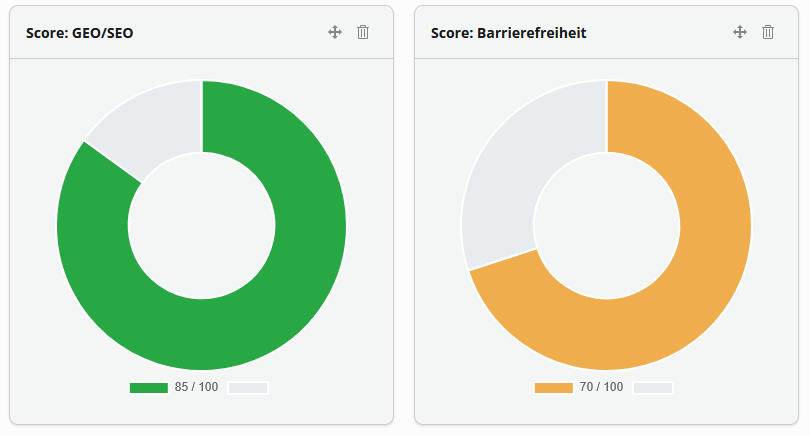
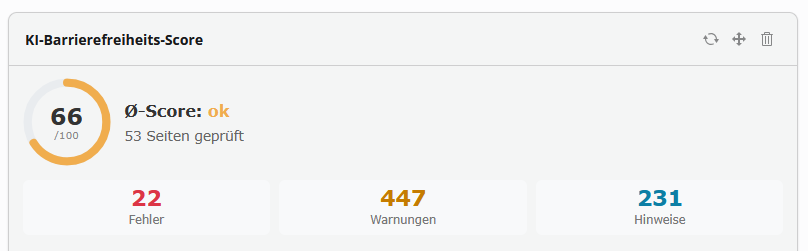
Multiple sites? The Audit score, Page score and Lighthouse widgets have a "Website" setting (gear icon on the widget). The default is "all sites"; pick one site and the widget shows only its pages. The widget displays a badge naming the currently selected website, so the figures are never read out of context — the average is thus meaningful for each editorial team in an installation that serves many sites.
Score history¶
Every time you (or the Scheduler) run a score analysis, the results are appended — old scores are never deleted. The inline panel shows a row of coloured dots below the rings once two or more historical runs exist. Each dot represents one analysis run:
- Green dot — average of all five scores was ≥ 75 (good)
- Amber dot — average was 50–74 (needs attention)
- Red dot — average was < 50 (critical)
Hover over a dot to see the date and exact average. The rightmost dot is always the most recent run (shown at full opacity; older runs are dimmed).
Setting the focus keyword¶
The keyword field on page properties → SEO (Focus Keyphrase) is used by both the keyword score and the SeoKeyphraseRule in the accessibility audit. Set it to the main search term the page should rank for. The KI button next to the field generates a keyword suggestion from the page content.
Running bulk analysis¶
# All pages in all sites.
vendor/bin/typo3 nt_ai:analyze-pages

# Page 42 and its full subtree.
vendor/bin/typo3 nt_ai:analyze-pages 42 99

# Direct children of page 1 only.
vendor/bin/typo3 nt_ai:analyze-pages 1 1

# Re-score only changed pages, at most 150 per run.
vendor/bin/typo3 nt_ai:analyze-pages --changed-only --limit=150
Each page is analysed in all configured site languages in one run.
| Option | Short | Effect |
|---|---|---|
--changed-only |
-c |
Skips a page/language when its latest score is newer than the last change to the page or its content elements (pages.tstamp and MAX(tt_content.tstamp)). No schema change. |
--limit=N |
-l |
Caps the number of pages actually analysed per run (0 = no limit). Skipped, unchanged pages do not count. |
Scheduling advice. A full run re-scores every page on each invocation and sends its text to the AI provider — costly on large sites and, when only a few pages change, mostly wasted. For a scheduled job use --changed-only: it costs nothing on quiet days and picks up changes promptly. --limit additionally keeps a catch-up run after a large editorial change from processing everything in one pass. Run once without --changed-only to build the baseline scores; after that the scheduled changed-only run is enough.
The exit code reflects reality: the command returns 1 (turning the scheduler task red) only on genuine technical failures (timeout, provider error, write error). Pages without a site (central record folders for forms, footer and navigation — doktype = 1 but reachable through no site) and pages returning a clean 404/410 (a news/events detail URL with no record) are a result, not a failure: they are counted as "unreachable", not "error", and do not consume a --limit slot. A healthy instance stays green.
Note
The command is token-intensive — each page costs one LLM call. Monitor cost via the Token Usage dashboard widget.
SEO field assistant¶
The SEO panel in the Page Layout module provides one-click generation for three SEO fields:
- SEO title
- "Generieren" → previews a ≤60-character page title optimised for search results. Click "Übernehmen" to save it directly to
pages.seo_title. - Meta description
- "Generieren" → previews a ≤155-character meta description. Saves to
pages.description. - Focus Keyphrase
- "Generieren" → suggests a focus keyword derived from the page content. Saves to
pages.tx_ntai_focus_keyphrase.
The same three fields have "✨ KI" buttons in the page properties form as well, for editors who prefer to work there.
Lighthouse monitoring¶
Public URLs required
PSI analyses pages by fetching their public URLs from Google's servers. This does not work for local development environments (DDEV, localhost) because Google cannot reach them. Run Lighthouse checks only on your production or publicly accessible staging server.
What is measured¶
| Score | What it measures |
|---|---|
| Performance | Page loading speed, resource efficiency, render-blocking assets. |
| Accessibility | Lighthouse's automated accessibility checks (complements the nt-ai WCAG audit which analyses the rendered DOM more deeply). |
| Best Practices | HTTPS usage, console errors, deprecated APIs, image formats. |
| SEO | Meta tags, robots.txt, mobile-friendly rendering. |
Core Web Vitals are also collected:
- LCP (Largest Contentful Paint) — loading performance
- CLS (Cumulative Layout Shift) — visual stability
- INP (Interaction to Next Paint) — responsiveness
Dashboard widget¶
Add the Lighthouse-Scores widget from Backend → Dashboard → Add widgets → KI. It shows the average scores across all analysed pages as four gauge rings, grouped by the configured strategy (Mobil/Desktop).
Display in the Page Layout module¶
In addition to the module overview, the AI-assistant panel in the Page Layout module shows a dedicated "Lighthouse" column with the four gauge rings (Performance, Accessibility, Best Practices, SEO) of the page's last stored measurement, plus the strategy and timestamp. A link from there leads directly into the Lighthouse module.
The display is read-only: Lighthouse is measured only via the scheduler/CLI (public URL required). If no measurement exists yet for the page, a corresponding hint with a link to the module is shown.
Running Lighthouse checks¶
# All pages, using the configured strategy (mobile by default).
vendor/bin/typo3 nt_ai:lighthouse

# Page 42 and full subtree, desktop strategy.
vendor/bin/typo3 nt_ai:lighthouse 42 99 --strategy=desktop

# Both strategies in one run (doubles API calls).
vendor/bin/typo3 nt_ai:lighthouse 42 99 --strategy=both

# Re-measure only changed pages, at most 200 per run.
vendor/bin/typo3 nt_ai:lighthouse --changed-only --limit=200
| Option | Short | Effect |
|---|---|---|
--strategy=… |
— | mobile, desktop or both (default from settings). |
--changed-only |
-c |
Skips a page/language/strategy when its latest measurement is newer than the last change to the page or its content elements (pages.tstamp and MAX(tt_content.tstamp)). The check is per strategy — a both run does not skip mobile just because desktop is recent. |
--limit=N |
-l |
Caps the number of pages actually measured per run (0 = no limit). Skipped, unchanged pages do not count. |
Schedule nt_ai:lighthouse as a "Execute console commands" Scheduler task. Recommended: run it nightly after nt_ai:analyze-pages so all data is fresh when the alert check runs.
Bounding runtime. A full run measures every page on each invocation, so its wall-clock grows with the page tree. For a scheduled job use --changed-only — only what changed since the last measurement is re-measured. Unlike analyze-pages this involves no personal data (Google fetches the public page itself). Note that Lighthouse scores also drift without content edits (server, assets, third parties), so schedule a periodic full pass (without --changed-only) as well, e.g. monthly.
Score threshold alerting¶
The nt_ai:alert-check command compares the latest AI content scores and Lighthouse scores against per-category thresholds configured in Admin Tools → Settings → Extension Configuration → nt_ai → Alerting.
When any page falls below a threshold, a single HTML summary email is sent listing all violations — one email per run, never per-page spam.
Configuring alerts¶
- Set
alerting.enabledto1. - Set
alerting.recipientto the email address(es) to notify. - Enter threshold values for each category you want to monitor (
0disables alerting for that category).
Suggested thresholds:
- AI content scores:
50(critical threshold — red range) - Lighthouse Performance:
70 - Lighthouse Accessibility:
80(Lighthouse's automated check, not WCAG)
Scheduling¶
Create a "Execute console commands" Scheduler task for nt_ai:alert-check and schedule it after your analysis runs:
03:00  nt_ai:analyze-pages    (AI content scores)
03:30  nt_ai:lighthouse       (Lighthouse PSI scores)
04:00  nt_ai:alert-check      (compare + send email if needed)
Token usage and cost estimation¶
When token tracking is enabled (tokenTracking.enabled = 1 in Extension Configuration), every AI call is logged. The dashboard widgets under Web → Dashboard show the usage:
- Token-Verbrauch — total tokens and estimated cost for the current month, broken down by provider and context. The "ca. Kosten" box appears in blue when the model is listed in the built-in price table.
- Verbrauch nach Benutzer — per-editor token counts and estimated costs for the current month.
- Token-Verlauf — a bar chart of daily token consumption over time.
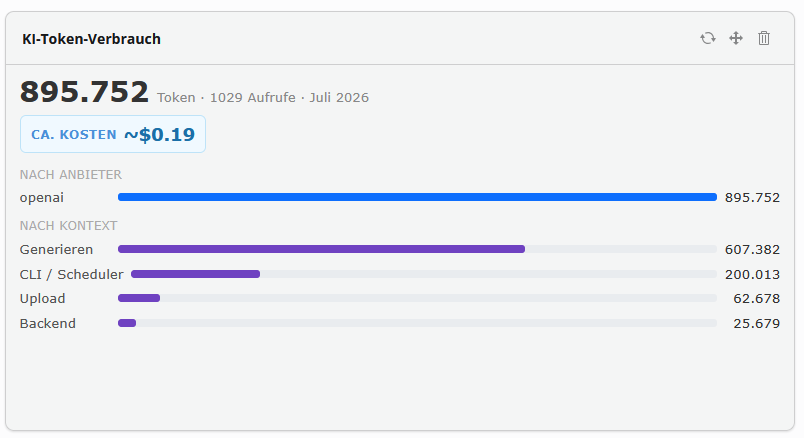
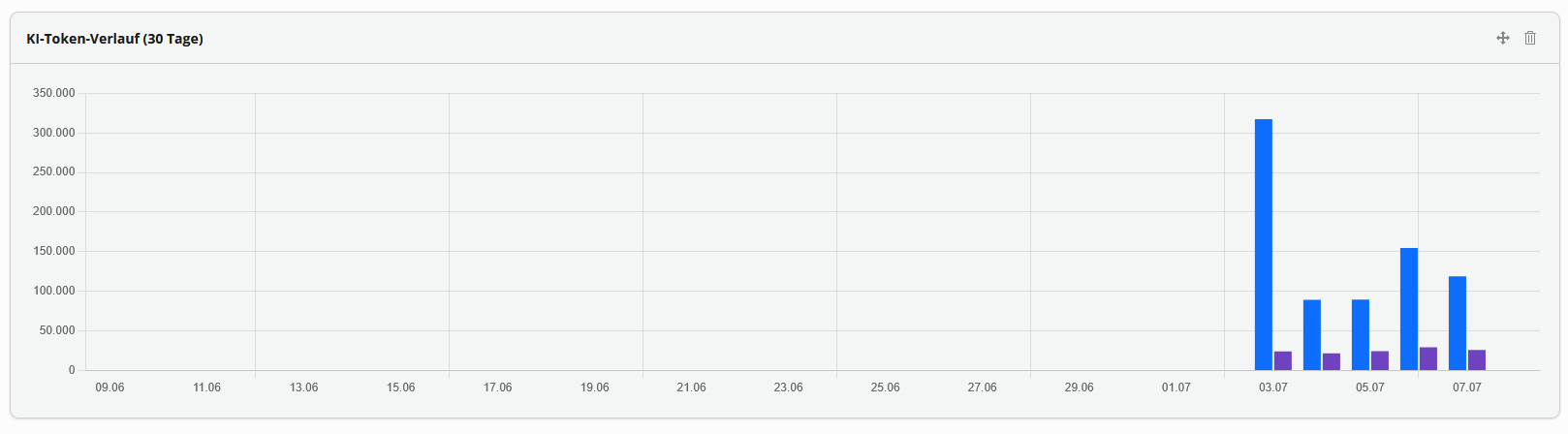
Costs are estimates only, calculated from the logged token counts using the built-in price table (Configuration/ModelPricing.php). For models not in the table a warning is shown. Adjust the exchange rate and add custom model prices in the Extension Configuration if needed.
Accessibility widget (frontend)¶
In addition to the backend tools, nt-ai ships an optional frontend widget that lets visitors adapt the presentation to their needs. It appears as a round button at the bottom left ("Accessibility"); clicking it opens a settings panel.
Features¶
| Feature | Effect |
|---|---|
| Text size | Enlarges/shrinks the content (page zoom, 100–175 %). |
| Increase text spacing | Line, word and letter spacing per WCAG 1.4.12. |
| Increase contrast | Boosts contrast; strength via slider. |
| Saturation / greyscale | Reduces colour saturation down to greyscale (slider). |
| Blue-light filter | Warm filter against blue light; strength via slider. |
| Dark mode | Switches on the site's native dark theme (brand orange kept as accent). |
| Colour deficiency | Adjusts colours for red, green or blue deficiency (cycle). |
| Reduce motion | Disables animations/transitions. |
| Highlight links | Underlines and marks all links. |
| Highlight focus | Clearly outlines the keyboard-focused element. |
| Easier-to-read font | Switches to a high-legibility font family. |
| Bigger cursor | Enlarges the mouse cursor. |
| Reading ruler | A reading band follows the cursor. |
| Hide images | Hides content images (logo, nav, hero, footer stay). |
| Mute sound | Mutes the sound of all audio/video. |
| Read aloud | Text-to-speech — see Read-aloud. |
Hovering/focusing a control shows a short description beside the panel. The widget is fully keyboard operable (real buttons/sliders, Alt + 1 toggles, Esc closes). Settings are stored locally (localStorage) — no server storage, no tracking. "Reset all" (bottom, or ↺ at the top) restores the initial state.
Backend configuration¶
The widget is controlled via the site settings (Site Management → Settings → Barrierefreiheit):
| Setting | Effect | Default |
|---|---|---|
| Show accessibility widget | Enables/disables the widget. | on |
| Widget position | Corner: bottom-right, bottom-left, top-right, top-left. |
bottom-right |
| Show label | Off = icon only (subtle), on = icon with the "Accessibility" label. | off |
| Symbol | Launcher icon (8 variants: person in double circle, in circle, arms out, on a line, in filled circle, wheelchair, active wheelchair, hand holding a person). | classic |
| Icon size (px) | Size of the symbol. | 26 |
| Distance to page edge (px) | Horizontal offset from the left/right edge. | 16 |
| Distance top/bottom (px) | Vertical offset from the top/bottom edge. | 16 |
| Target for text size & colour filter | CSS selector of the element that text zoom and the colour filters (contrast, saturation, colour deficiency) apply to. Must wrap the content but contain no fixed elements (sticky header, back-to-top). | #maincontent |
By default only the subtle icon appears at the bottom right (so it does not cover, for example, the cookie-consent button).
Dark mode = real theme
The widget's dark mode switches on a native dark theme for the site (nt-dark-theme.css in the sitepackage, activated via html[data-nt-theme="dark"]) — no longer a CSS invert filter. The brand colour (orange) is kept as the accent.
System settings take precedence
Operating systems and browsers already offer many of these options system-wide. nt-ai honours them automatically: prefers-reduced-motion, prefers-contrast and prefers-color-scheme are respected; additionally a site-wide prefers-reduced-motion guard covers the theme's scroll animations (.animate-box), plus focus visibility in Windows High Contrast Mode (forced-colors). The set also ships two keyboard guards: skip links (.visually-hidden-focusable) become visible on keyboard focus, and a :focus-visible safety net guarantees a visible focus outline even when the theme suppresses outline.
Why a widget — and explicitly not an overlay¶
Commercial "accessibility overlays" (e.g. tools that bolt on ARIA via JavaScript or claim to "make a site accessible automatically") are heavily criticised by accessibility experts. nt-ai deliberately avoids that approach:
- Overlays don't fix real issues. They paper over the problem instead of fixing the source. Legally (BFSG / EN 301 549) the accessible source is what counts — no widget protects against complaints or lawsuits.
- Overlays are often a barrier themselves. They conflict with screen readers and keyboard use, rewrite the DOM without consent, and can disrupt assistive technology.
- They duplicate what the system already does. Users with disabilities have their tools configured already; a widget that fights those makes things worse.
The nt-ai widget is therefore intentionally a comfort / personalisation layer, not an "accessibility fixer":
- No DOM or ARIA rewriting. It only sets
data-*attributes on<html>; plain CSS does the presentation. Page content is untouched. - System settings are respected, not overridden (see the note above).
- The widget itself is fully accessible: real buttons,
aria-expanded/aria-pressed, keyboard operation,Esccloses and returns focus, no focus trap. - Privacy-friendly: purely local, no external requests.
The conformance path remains the audit
The widget does not replace the website's accessibility. Real conformance comes from fixing the causes — that is what nt-ai's accessibility audit, the BFSG reports and the alt-text generator are for. The widget is comfort on top.
Planned (level 2)¶
A text-to-speech (read-aloud) feature is noted for a later iteration. It was deliberately deferred because it duplicates screen-reader functionality and is only useful for users without assistive technology — it must be cleanly separated from and clearly labelled as such.
Read-aloud (text-to-speech)¶
nt-ai includes a self-hosted read-aloud feature that fully replaces services like ReadSpeaker. It reads the content area (#maincontent) block by block and highlights the paragraph currently being read. The control bar offers previous/next (paragraph), pause/stop and sliders for volume and speed. The widget also has a "Click to read" mode: turn it on and click any paragraph to read from there.
Two ways to use it¶
- In the accessibility widget: the "Read aloud" item.
-
Placed freely in the template (e.g. next to the breadcrumb) as a visible button — the Fluid partial or plain HTML, both auto-wired:
<f:render partial="ReadAloud" arguments="{_all}"/>
<button type="button" class="nt-tts-btn" data-nt-tts>Read aloud</button>
Override the read scope per button with
data-nt-tts="#my-area".
Engine — hybrid, admin-switchable¶
The engine is chosen in the site settings (Site Management → Settings → Vorlesen (TTS)): enable on/off, engine (Web Speech = free local browser voices, or Cloud = premium voices), rate, and scope selector.
- Web Speech uses the browser/OS voices — free, no data leaves the browser.
- Cloud generates premium voices server-side via nt-ai. Provider/voice/model and the API key live in the nt-ai extension configuration (tab Vorlesen (TTS)); generated audio is cached server-side so repeat reads of the same text cost nothing, and the key never leaves the server. If the cloud service fails, the client falls back to the browser voice.
Fully keyboard operable. Read-aloud is not a screen-reader replacement — it is an extra for users without assistive technology.
Fixing pronunciation
Acronyms/brand names like TYPO3 are often spelled out by voices ("T-Y-P-O-3"). The site setting "Aussprache-Ersetzungen" handles this: terms in the format term=pronunciation, separated by | — e.g. TYPO3=Typo three|CMS=C-M-S. The replacement applies before both engines (only the spoken output changes; the visible page text stays), is case-insensitive and whole-word. Do not use quotes.
Abuse protection & cost¶
The cloud endpoint (/nt-ai/tts) triggers paid API calls, so it is guarded:
- Only active when the engine is "Cloud" — on Web Speech sites the endpoint stays dark (HTTP 403).
- Cross-site requests are rejected (HTTP 403).
- Per-IP rate limit — extension config
tts.rateLimit(default 30/minute/IP,0= unlimited); further requests get HTTP 429 withRetry-After. - Server cache: already-spoken passages cost nothing and don't count toward the limit; text length is capped; the endpoint is
noindex.
Cost visibility: each real cloud generation (cache miss) is recorded when token tracking is on and shows up in the "Token usage" dashboard widget under "Vorlesen (TTS, Zeichen)" with estimated cost (TTS is billed per character). Web Speech incurs no cost and no tracking.